
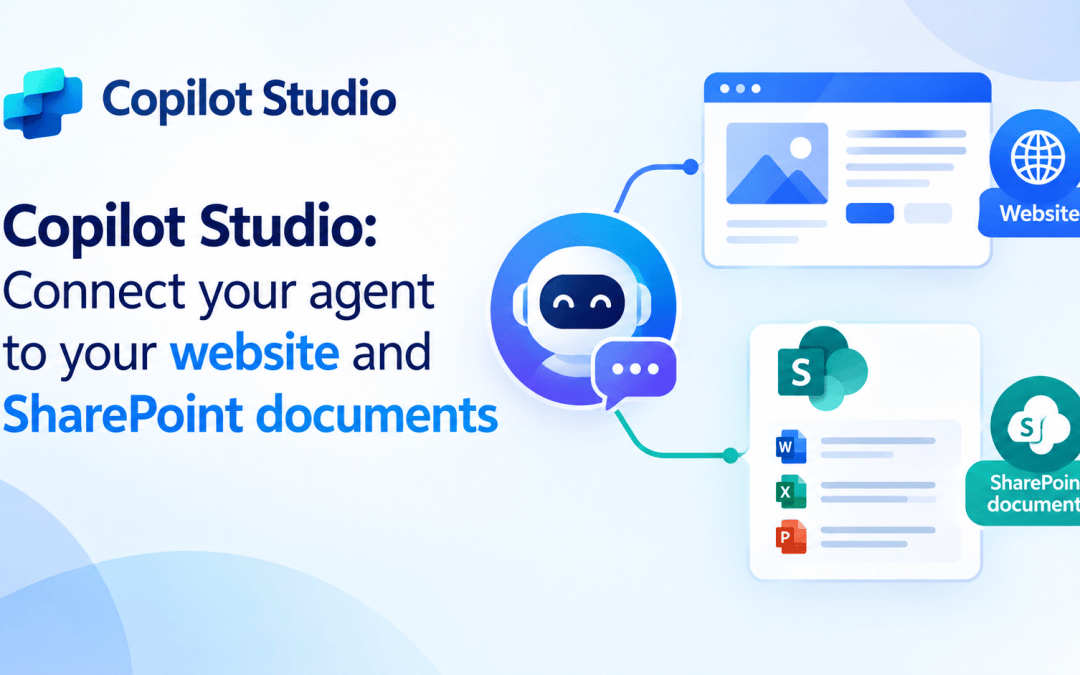
Your agent needs good knowledge to help you. You can train it to find answers from your website and files instead of guessing. This guide shows you how to do that and make sure the answers are correct.
Before you click anything, write down some places where you can find the right answers. Common places to check are:
- Public website: your help center or FAQ pages
- SharePoint: internal policies, guides and team sites
- Uploaded files: Word documents, PDFs or slide decks
Delete any old drafts or versions you wouldn’t want others to read. If two papers say different things, the agent can pick either one.
Let’s see how we can do this:
Navigate to https://copilotstudio.microsoft.com/ and open your agent
On the right panel, choose the Knowledge section

In the Add Knowledge window that opens, choose Public websites.

Turn Search all websites off, type your public website URL, and choose the Add button.

Your website source is added with a Name and Description filled in. At this point, you can update the website knowledge source description.

Finally, choose Add to agent to add your website as a source.

Now, in the Knowledge section, you can view your website as the only source of truth.

To add a SharePoint location, go to Knowledge, choose Add knowledge, and choose SharePoint.

Add the SharePoint site address and choose Add.

Your SharePoint site source has been added with a Name and description. You can now update the SharePoint site’s knowledge source description. Finally, select Add to agent to include your SharePoint site as a source.
