


Someone deleted the wrong records, possibly by mistake or through a bulk delete. Now, you need to restore them. If you have turned on the right setting, you can restore those records yourself, usually within a few minutes.
Bear in mind, you can only restore records deleted after you turned on this setting.
Here’s how to do it.
Before you begin, you need an account with the Power Platform admin or Dynamics 365 role
First, turn on the feature designed for this purpose, this is called “Deleted records” and here’s how to turn it on.
Navigate to https://admin.powerplatform.microsoft.com
To start, go to the left pane and choose “Manage.” Then, click on “Environments.”

Then, from the command bar at the top, select Settings

Expand Product, and select Features

Go to the Deleted records feature and enable Keep Deleted Dataverse Records.
The setting takes about 30 minutes to activate. Records deleted before then cannot be restored. To check if it’s ready, delete a test record and see if it appears in the deleted records list.

The feature, except for the turn-on/off checkbox, includes a text box to set how many days you want to keep deleted data available for restoration.
A week or two is often enough, but 30 days is a good middle ground. Longer periods will use more storage.
Here’s how to restore your deleted records. I deleted a few records for testing.
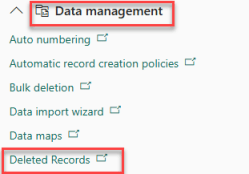
To access deleted records, go to Settings, expand the Data Management section, and select Deleted Records.
Find the records you need, tick the ones you want to restore, then tap the Restore button.

Tap on Restore to confirm that you want to proceed with the restoration.

In a few seconds, your record will be restored.
