
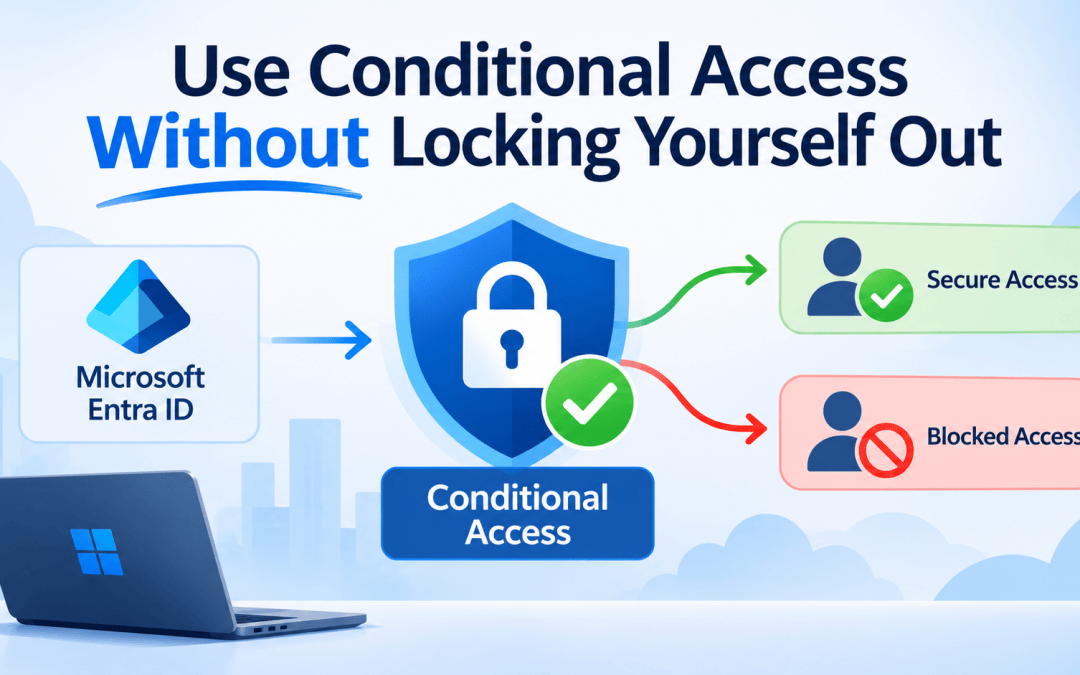
Before using Conditional Access, first create your emergency or break-glass accounts. This is the first thing I advise everyone to do, because a single incorrectly configured policy can lock all admins out of the tenant.
Let’s take them one at a time
A break-glass account is a unique account used only in emergencies when other ways don’t work. It’s good to have two of these accounts.
Here’s what you need to know:
- Make them cloud-only accounts on the onmicrosoft.com domain, not synced from on-premises.
- Configure a strong MFA method. Using a FIDO2 security key is also a good practice.
- Exclude them from your Conditional Access policies. This is the whole point.
- Set up an alert when either account signs in. If one gets used and you didn’t plan it, you want to know right away.
- Test them every few months to make sure they still work when you need them.
Conditional Access requires Microsoft Entra ID P1. Risk-based policies (sign-in and user risk) require P2.
Let’s view the steps in order
Set up two cloud-only emergency/break-glass accounts for critical conditions.

Create a security group similar to the one shown below to add the two accounts.

In the conditional access policies you create, exclude the group that contains the two emergency accounts.

It is recommended that every new policy start in Report-only mode. This way, the policy can run and log what it would have done without actually blocking anyone. It’s a good idea to leave new policies running in Report-only mode for one or two weeks. This way, the logged data sample will help you make a decision.

Microsoft provides the following Conditional Access Policies (CAP) templates for the tenant’s global admins to use, and in my opinion, they should use them:
| Conditional Access Policy (CAP) | Description |
| Require multifactor authentication for all users | Everyone signs in with their password and a second verification method, such as an Authenticator app prompt or code. |
| Require multifactor authentication for select admins | Admin accounts have full access to the entire environment, so anyone in these roles must verify their identity each time they sign in. |
| Block legacy authentication | Disables sign-ins using older protocols like POP and IMAP, as they cannot support MFA, making them vulnerable entry points for attackers. |
| Require compliant or hybrid Azure AD joined device or multifactor authentication for all users | Users on a managed company device can log in directly. Users with personal or unmanaged devices must complete MFA first. |
| Block access for unknown or unsupported device platform | If the device’s operating system cannot be identified or is not on the approved list, the system will block sign-in. |
| Require phishing-resistant multifactor authentication for admins | Admins should use secure sign-in methods that cannot be spoofed, such as security keys and Windows Hello. |
| Require multifactor authentication for Microsoft admin portals | Users must complete MFA to access any Microsoft admin center, including the Azure portal and Microsoft 365 admin center. |
Set up a sign-in alert for your break-glass accounts
As a prerequisite you must send sign-in logs to a Log Analytics workspace: Entra admin center – Monitoring & health – Diagnostic settings – Add diagnostic setting – SignInLogs – Send to Log Analytics workspace.
To set up a sign-in alert for your break-glass account, go to the Monitor resource and choose Alerts – + Create – Alert rule.

Set the scope to your Log Analytics workspace, choose Custom log search and paste the query below. Set the threshold to greater than 0 and the frequency to 5 minutes, then add an action group (email or SMS).
SigninLogs
| where UserPrincipalName in~ ("break-glass@#######.onmicrosoft.com", "emergency@#######.onmicrosoft.com")
| project TimeGenerated, UserPrincipalName, IPAddress, Location, AppDisplayName, ResultType
Summary
Use Conditional Access to keep your accounts safe. Create two special accounts for emergencies, and check the settings for a week before turning them on. This way, you stay protected without getting locked out.
Related links
- Manage emergency access accounts in Microsoft Entra ID
- Conditional Access templates
- What is Conditional Access report-only mode?
- Planning for mandatory multifactor authentication for Azure and other admin portals
- Conditional Access insights and reporting workbook